Chapter 8 — WorkBuddy Mini-Programs & IM Assistants
Two Modes of the Mini-Program
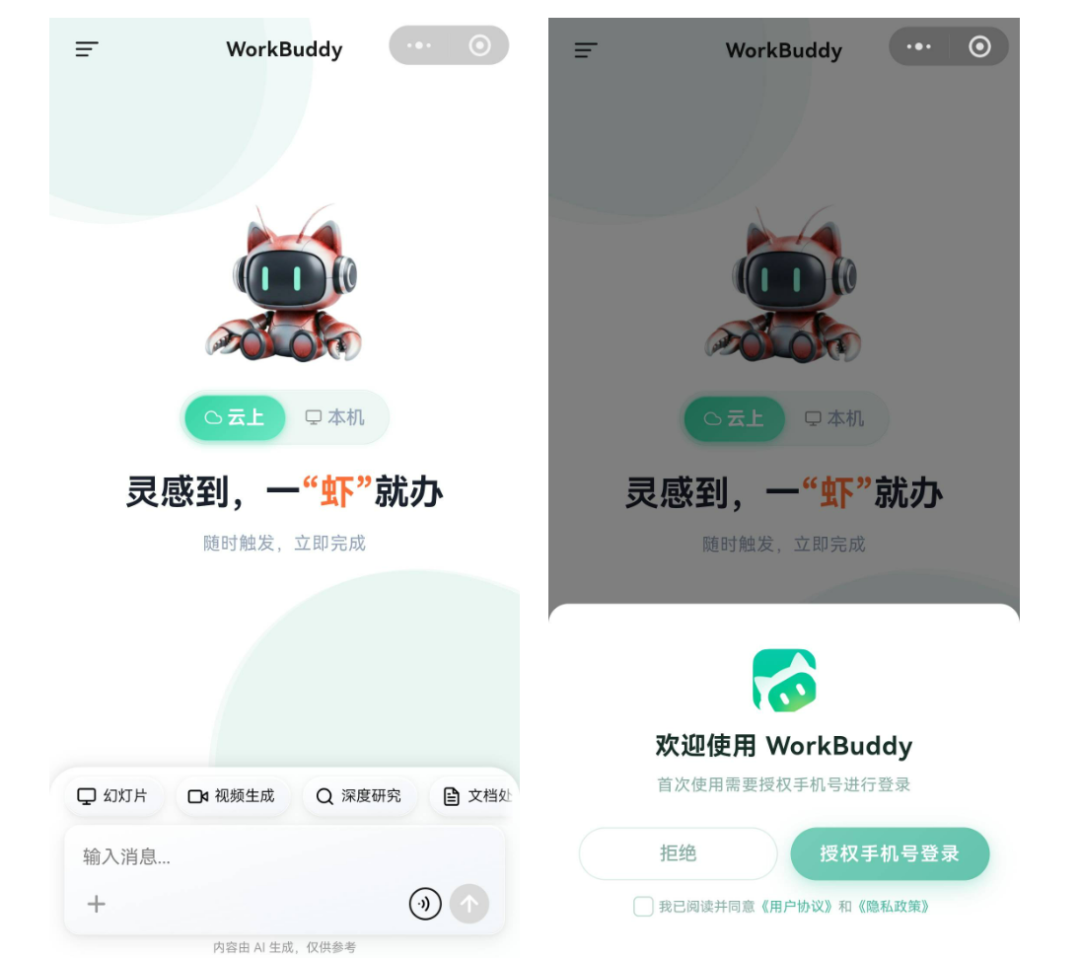
| Mode | Where the task runs | Depends on PC online? | Suited tasks |
|---|---|---|---|
| Local mode | The connected computer | Yes | Local files, local Skills, existing workspaces |
| Cloud mode | An isolated cloud environment | No | Research, writing, ad-hoc analysis, parallel tasks |
First use
- Open the WorkBuddy mini-program from the official entry and sign in;
- Check whether you're in local or cloud mode;
- In local mode, confirm the target computer is online and connected correctly;
The IM Assistant Work Pipeline
sequenceDiagram
    participant U as Phone IM
    participant B as App Bot
    participant W as WorkBuddy Assistant
    participant P as Local Workspace
    U->>B: Send task
    B->>W: Pass message via callback or long connection
    W->>P: Execute in authorized directory
    P-->>W: Deliverables and status
    W-->>B: Return result
    B-->>U: Review and confirm on phone
Connect the WeChat Assistant: Scan to Bind
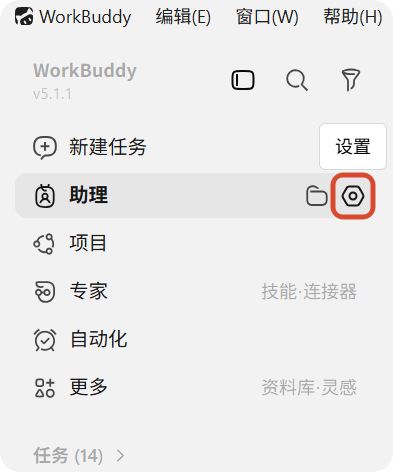
- Open WorkBuddy, click the gear in the "Assistant" column on the left to enter "Assistant Settings";
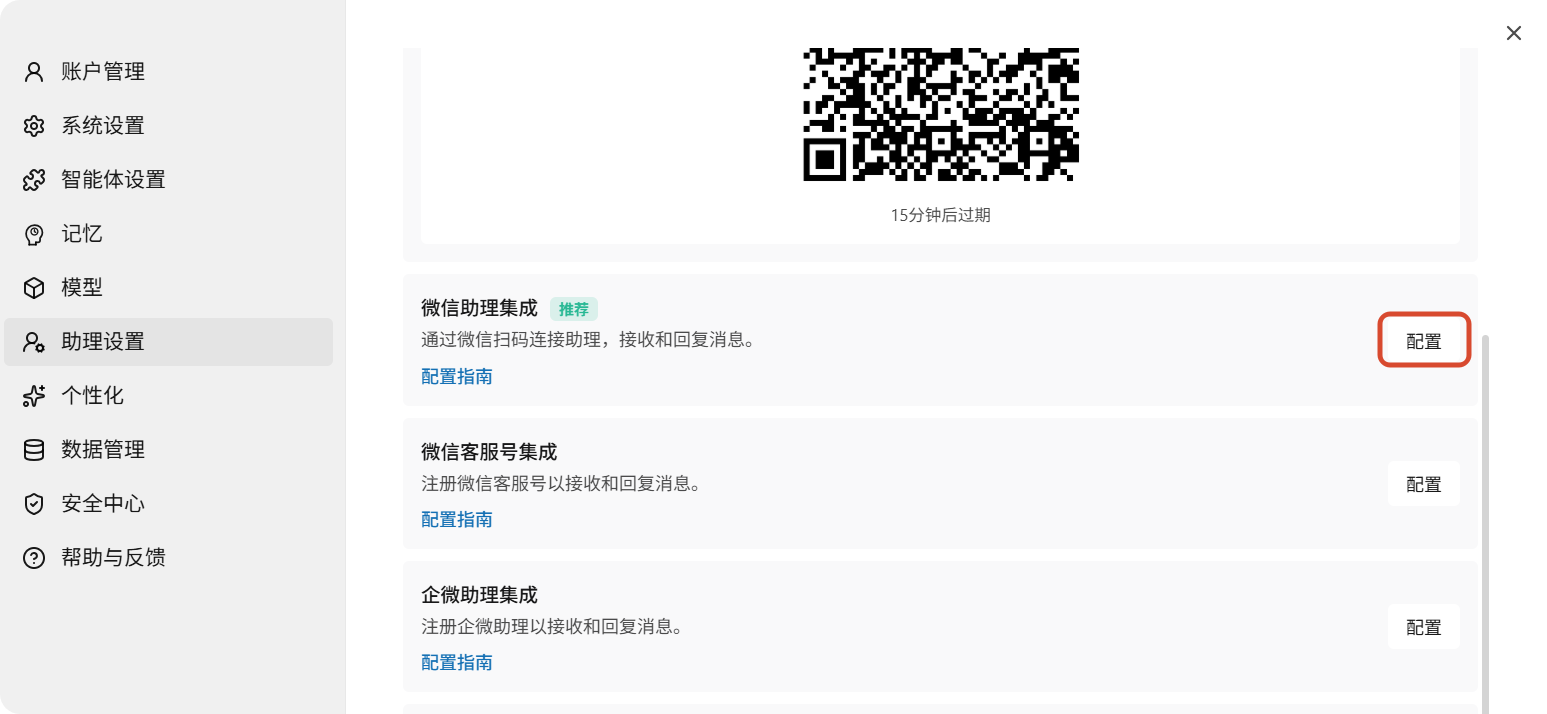
- Find "WeChat Assistant Integration" and click "Configure";
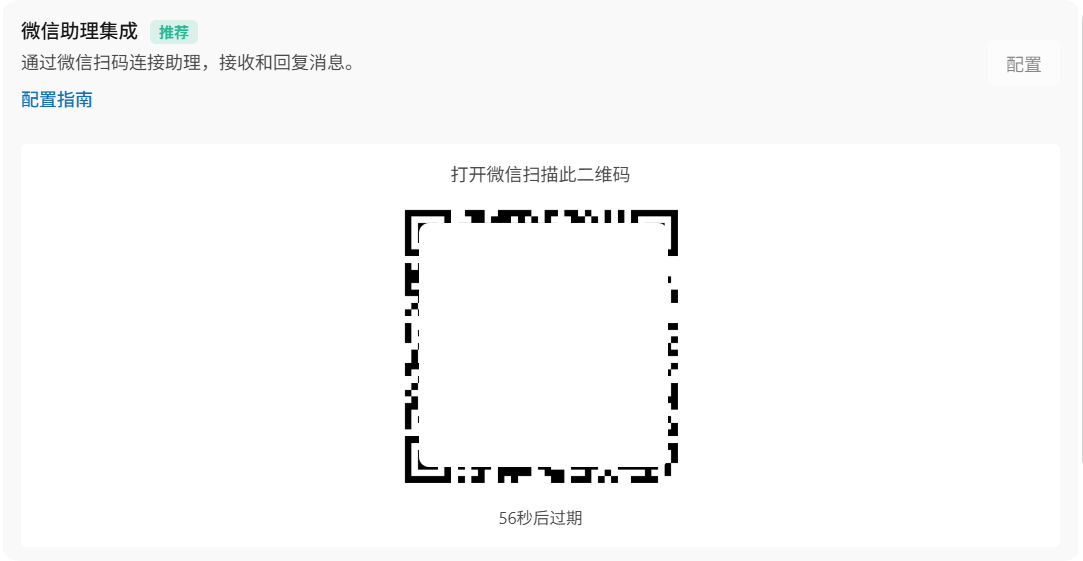
- Wait for the binding QR code and scan it with WeChat on your phone;
- Once the card shows "Bound", first send a read-only test command;
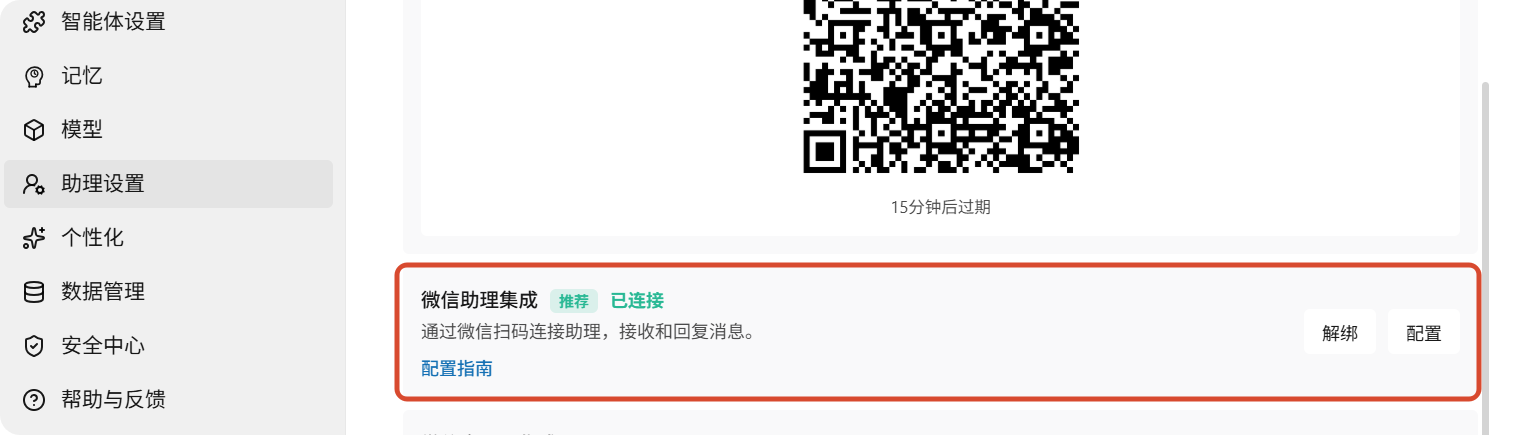
- To switch WeChat accounts, unbind the current account first, then re-scan.
QR codes have a time limit. If it stays on "Binding", the code expires, or scanning fails, close the config window and re-enter; if needed, restart WorkBuddy and regenerate the code.
Source: WorkBuddy official guide.
Connect Feishu
- WorkBuddy → Settings → Assistant Settings → pick Feishu;
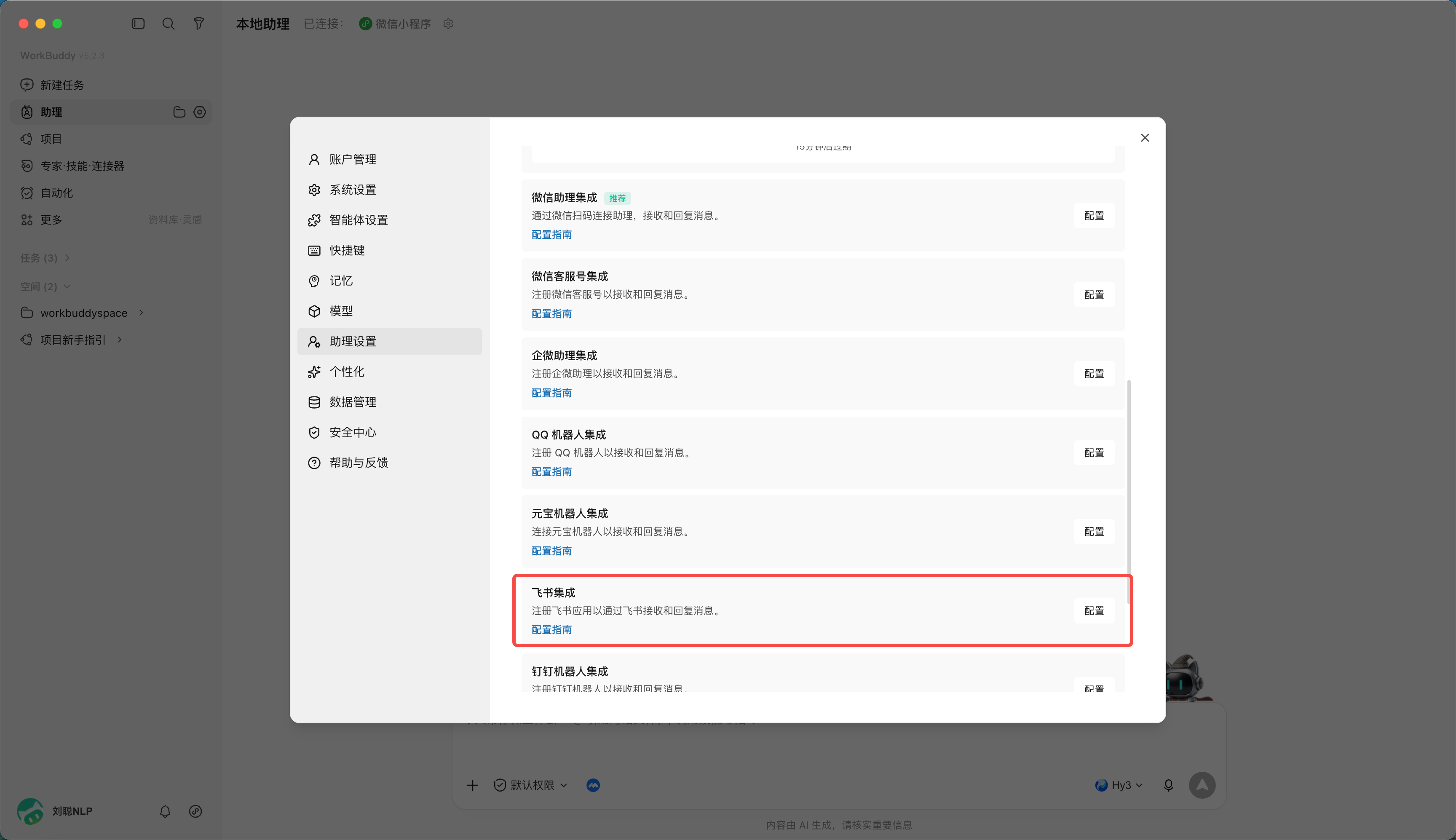
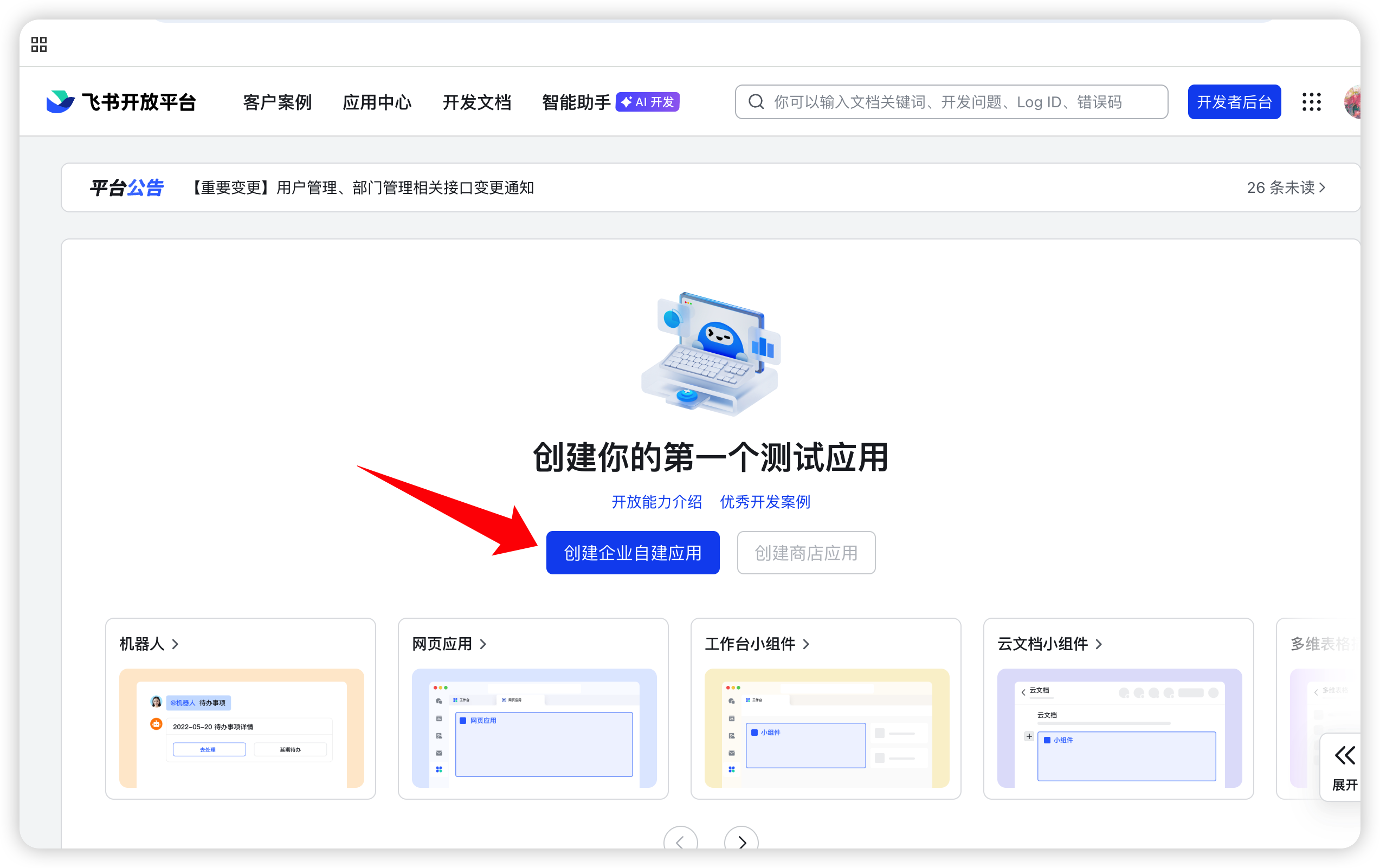
- Create an enterprise self-built app on the Feishu open platform;
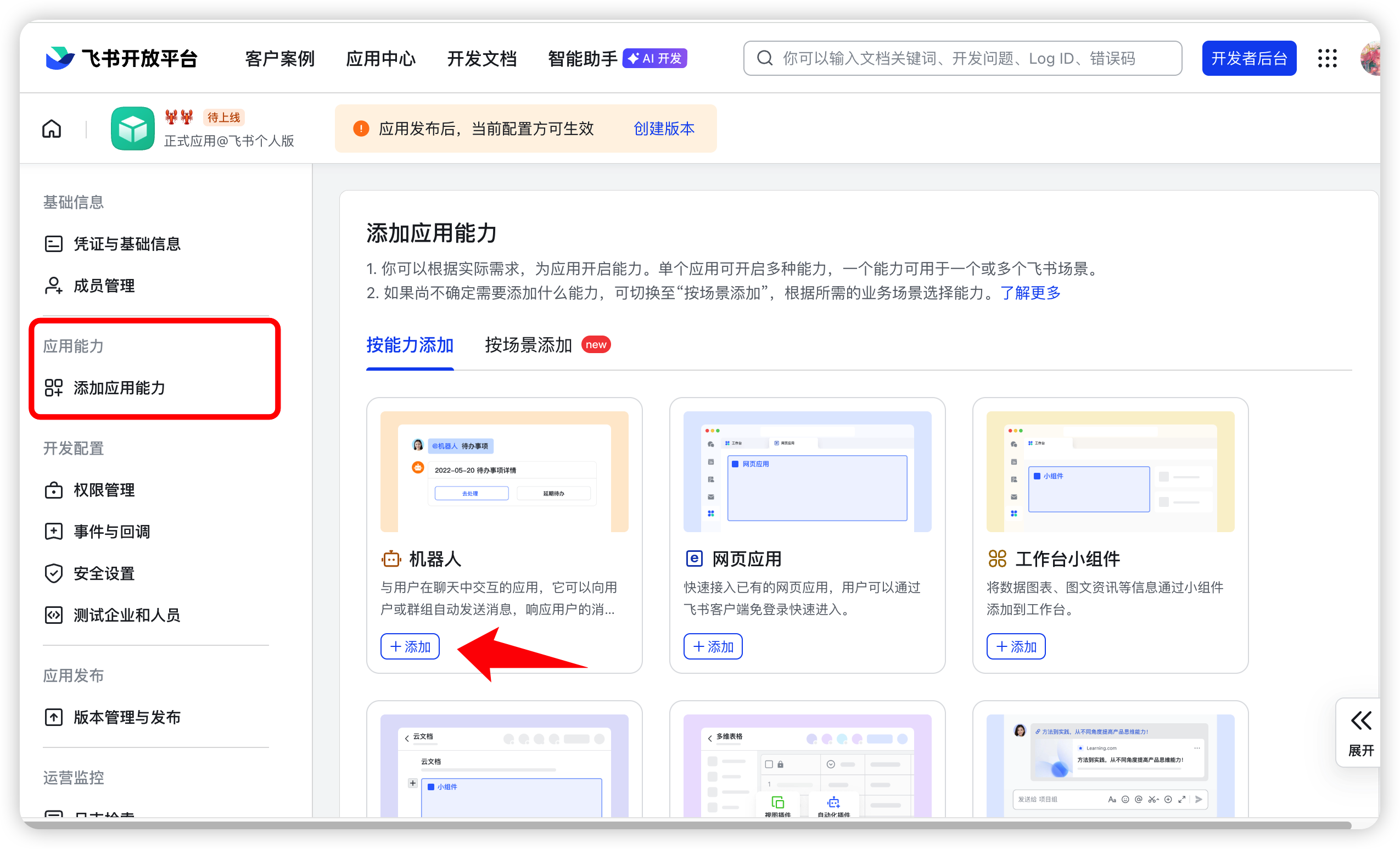
- Add the bot capability to the app;
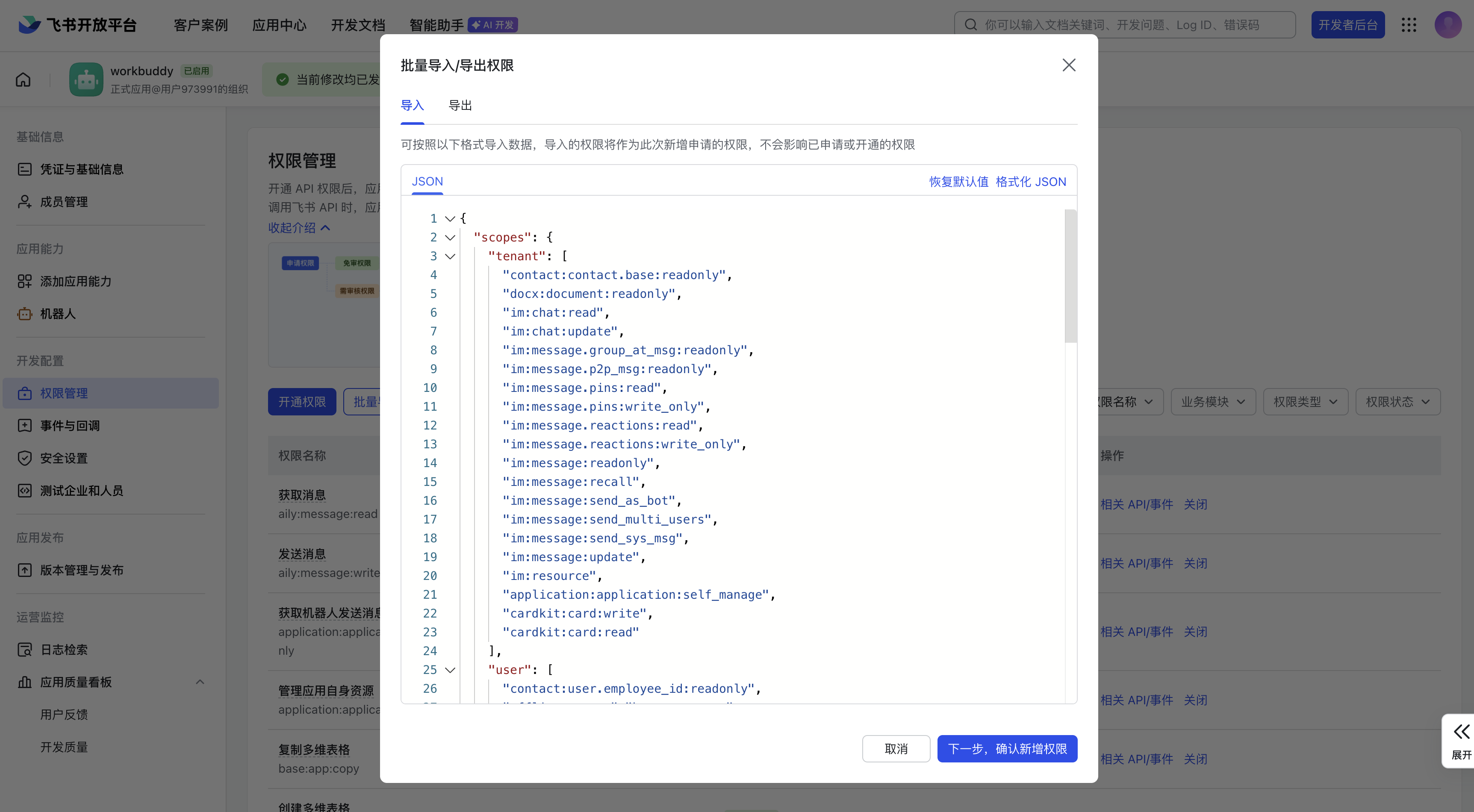
- Grant the minimum permissions the WorkBuddy page currently requires;
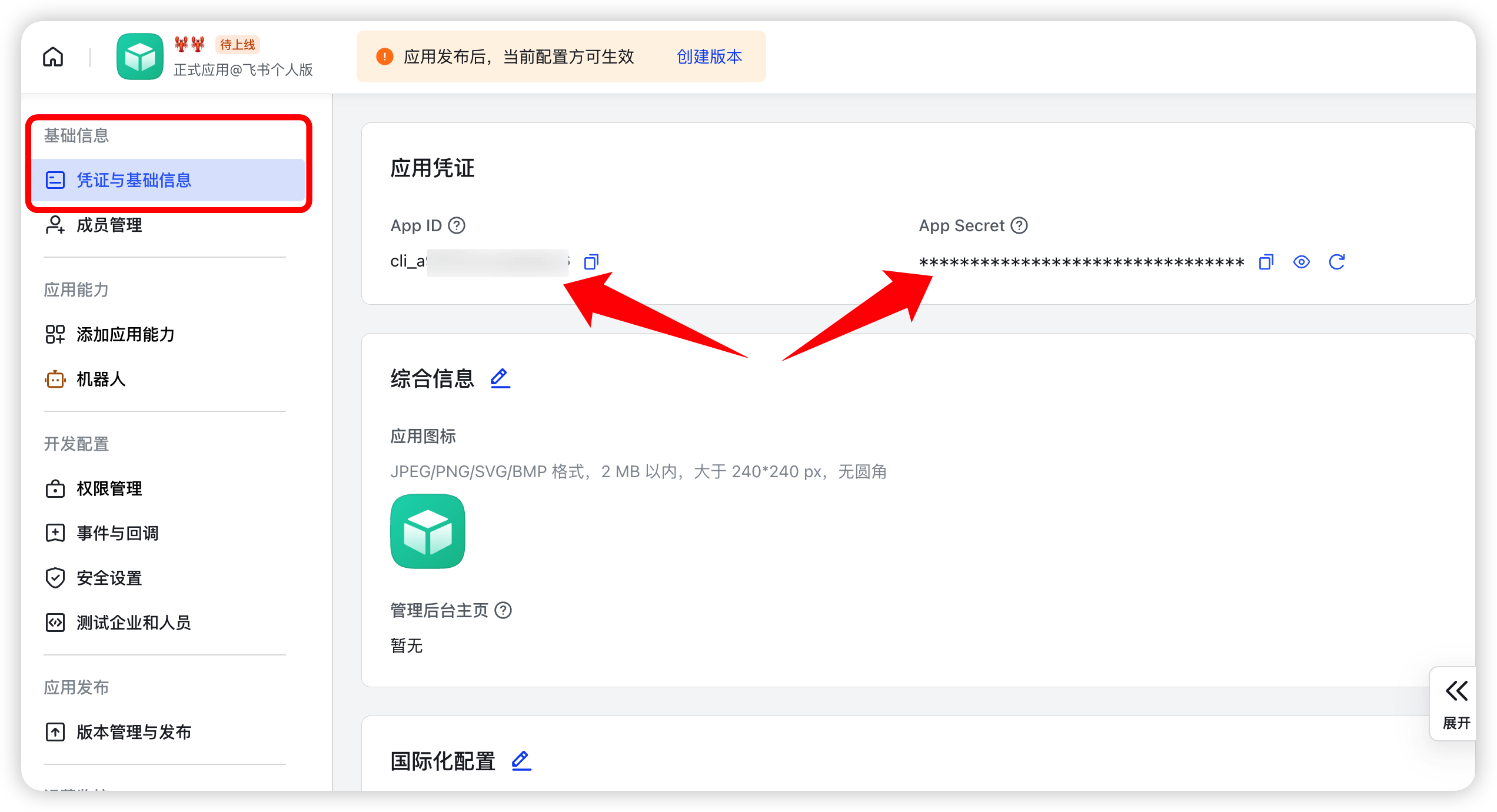
- Get the App ID and App Secret under "Credentials & Basic Info";
- Fill the credentials into WorkBuddy and generate or copy the callback info;
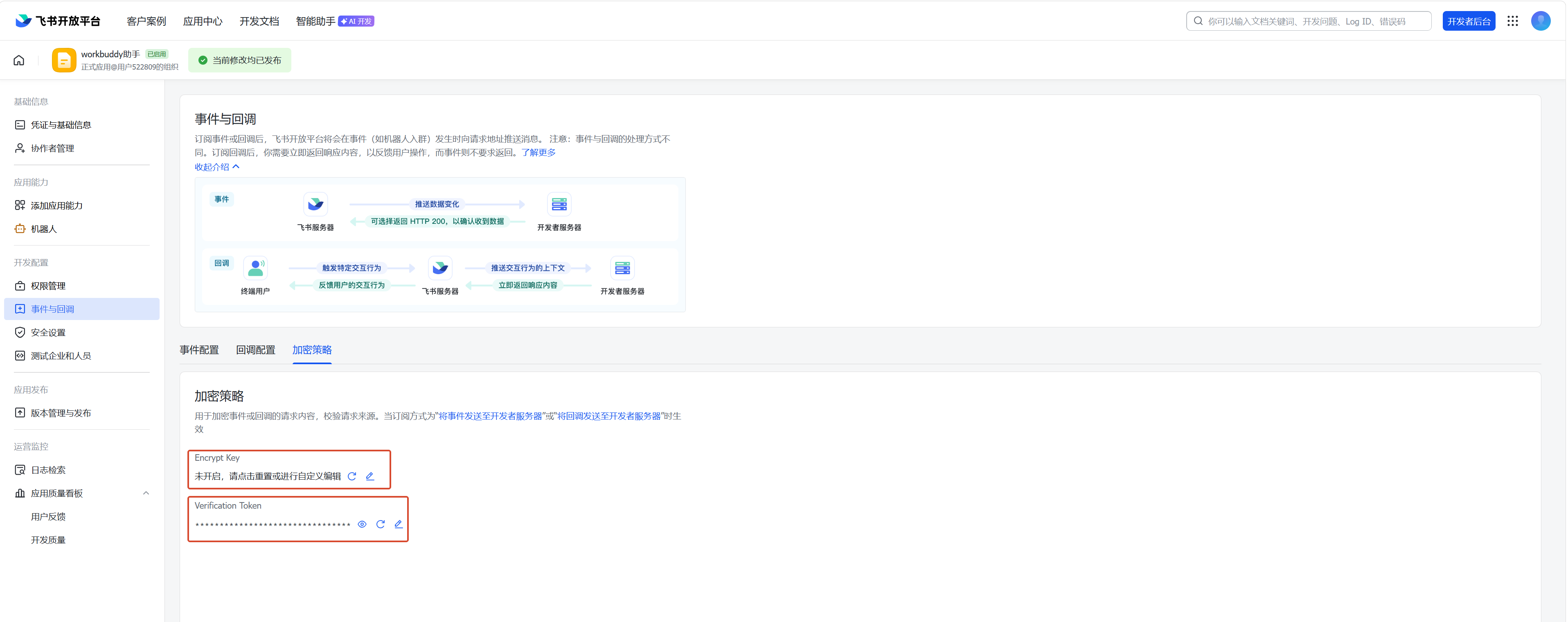
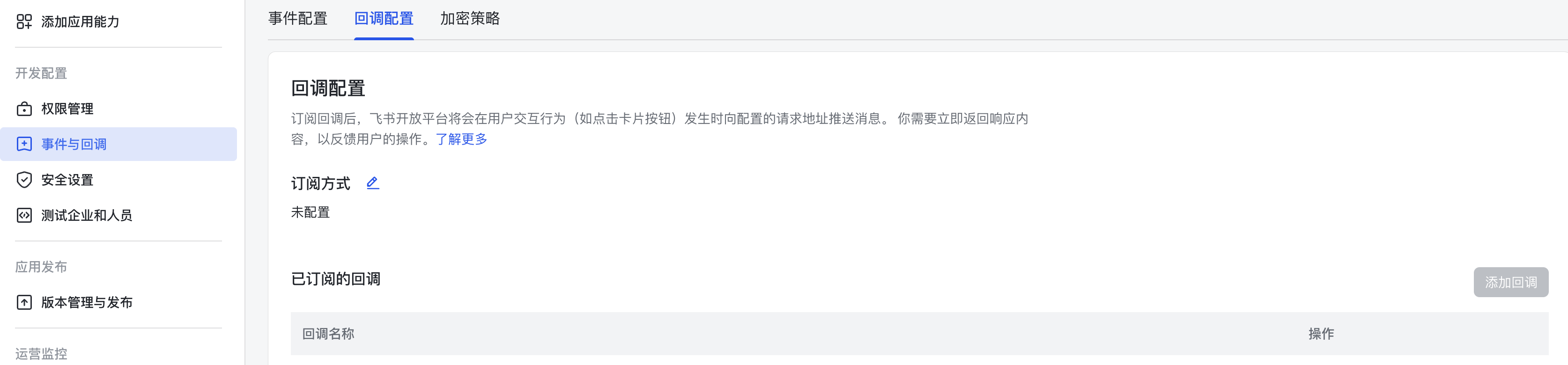
- Configure event subscription and callback in Feishu;
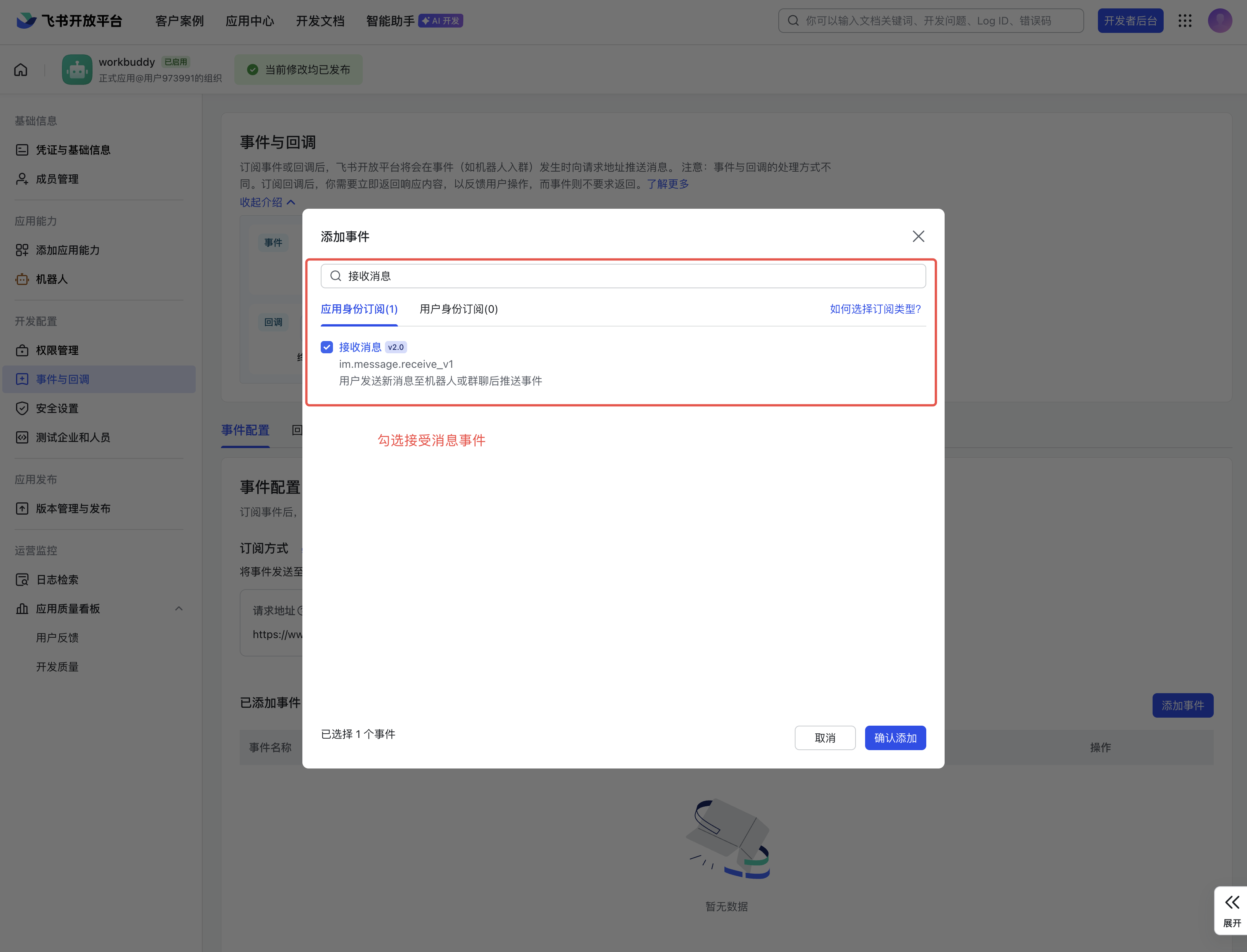
- Add events the current guide requires, like receiving messages and card interactions;
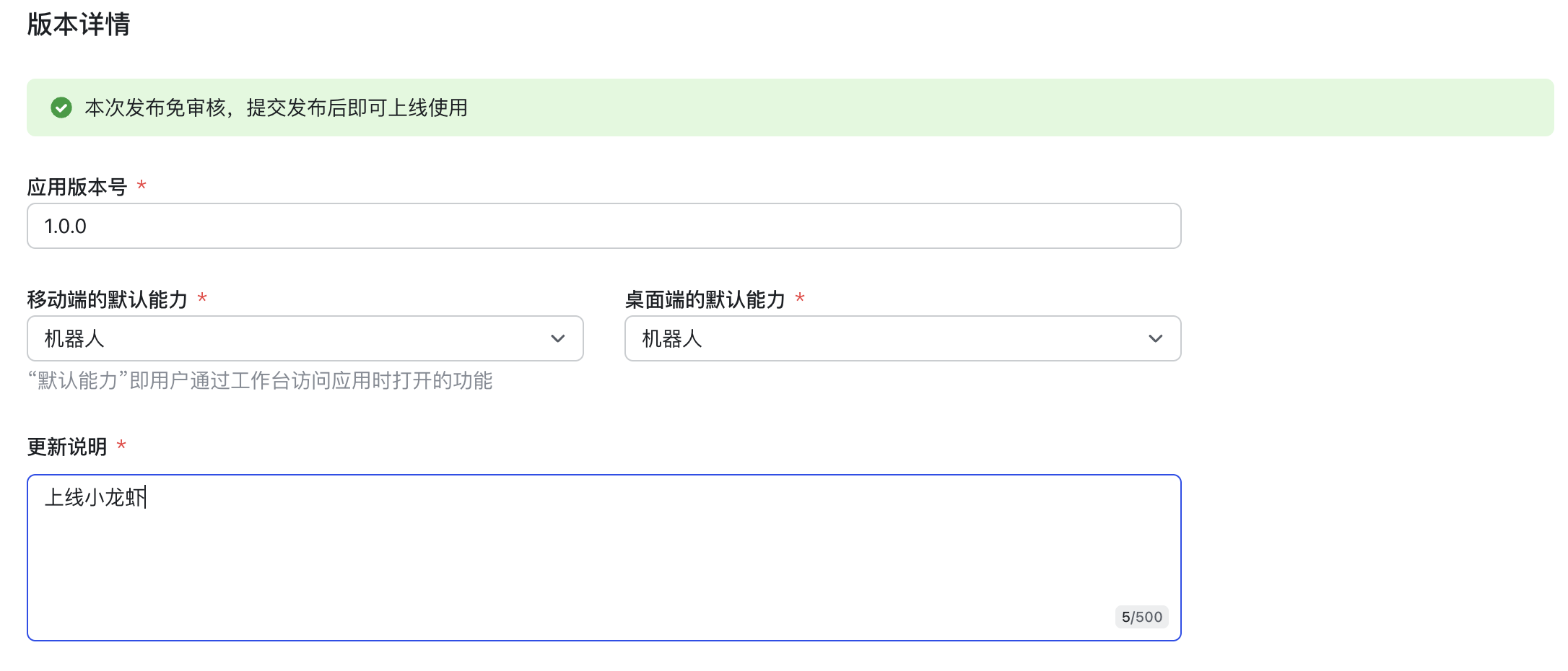
- Create a version and publish the app;
- Send a read-only test task to the bot in Feishu.
Source: WorkBuddy official guide.
Connect DingTalk
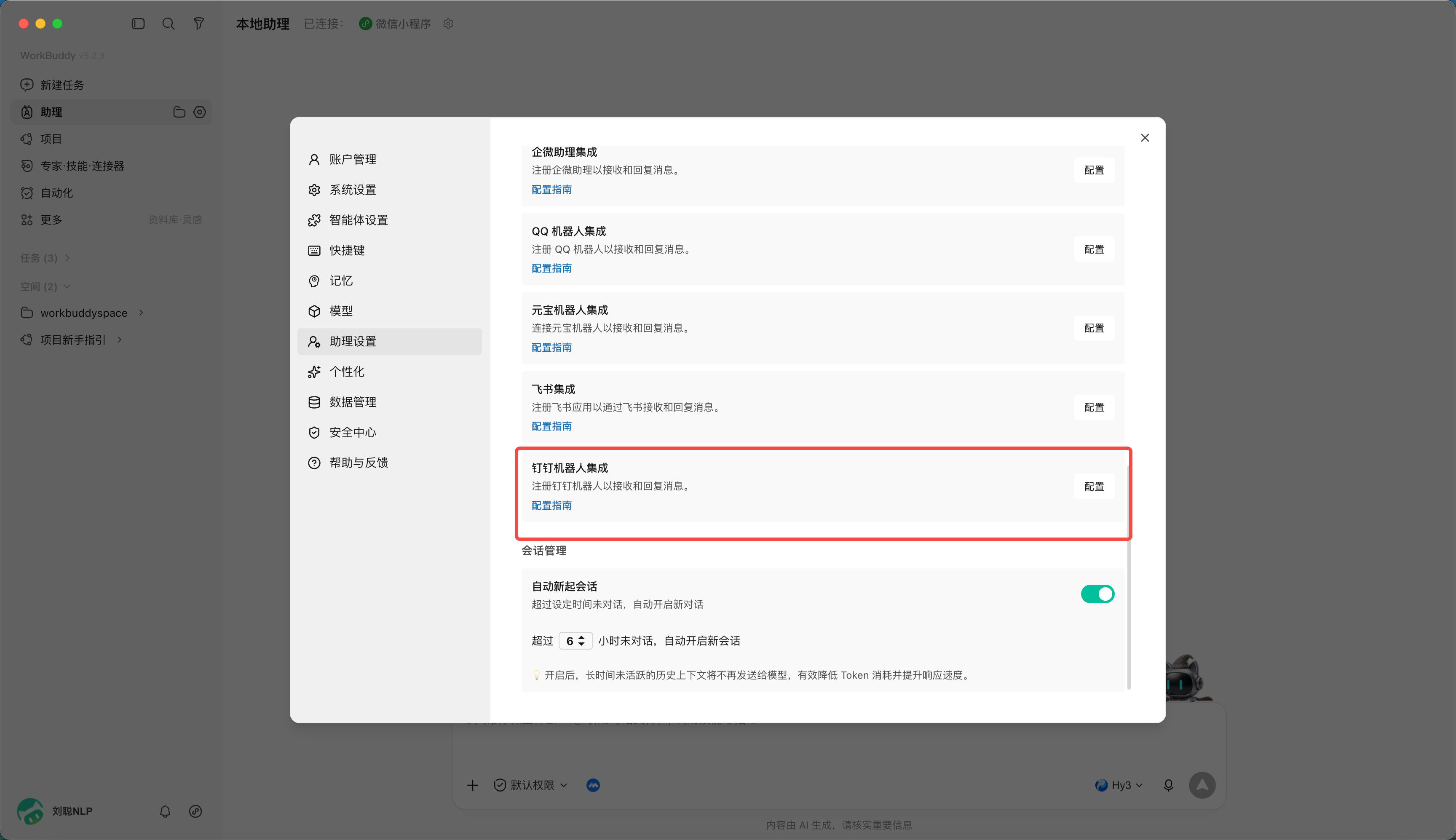
- Create an app and bot using an enterprise admin account on the DingTalk developer backend;
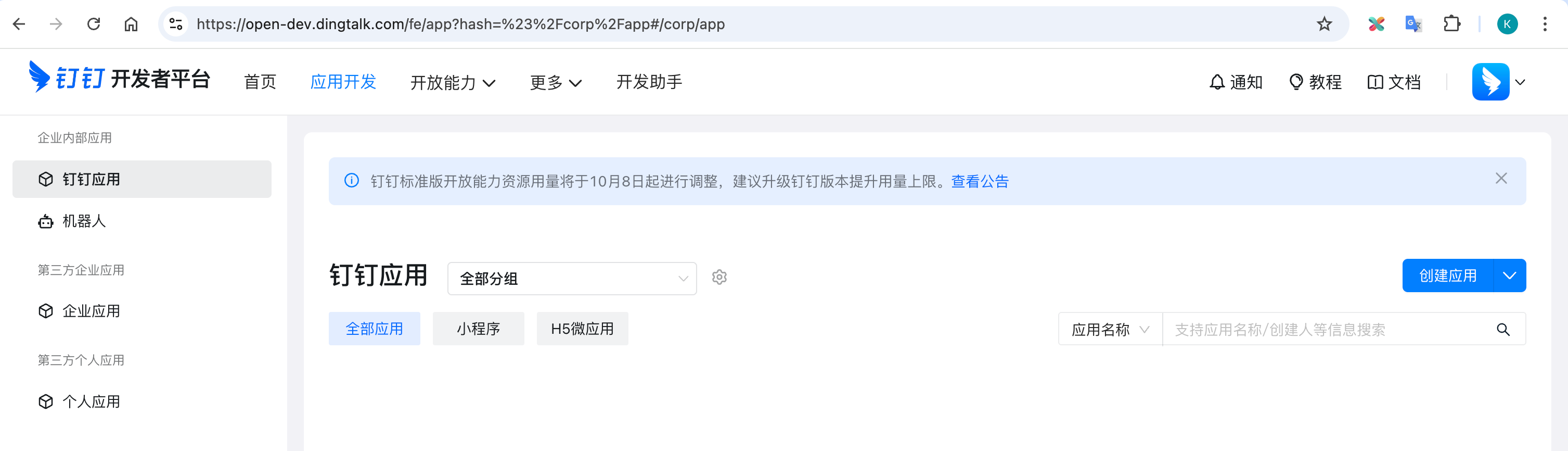
- Go to "App Development" and create an app;
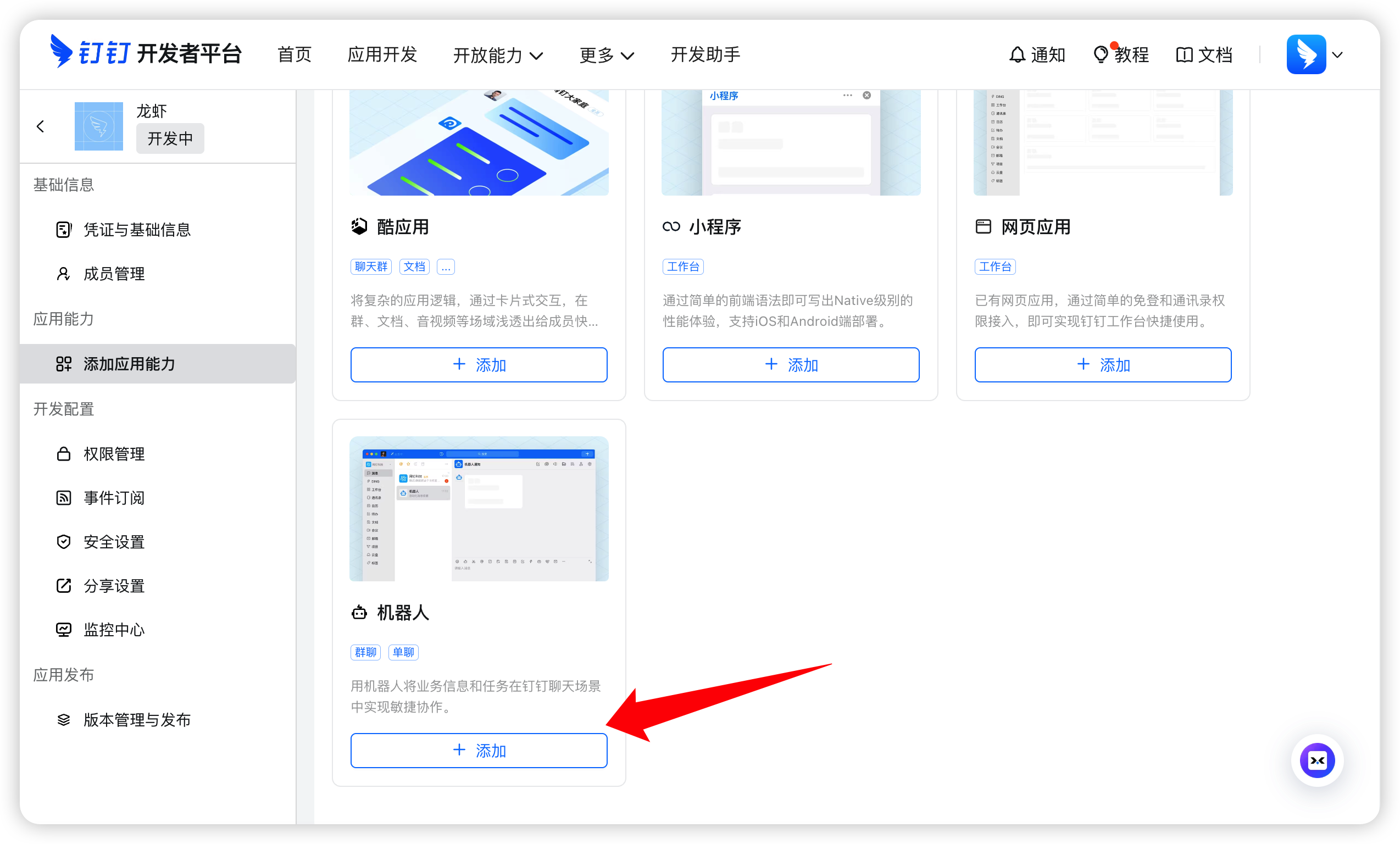
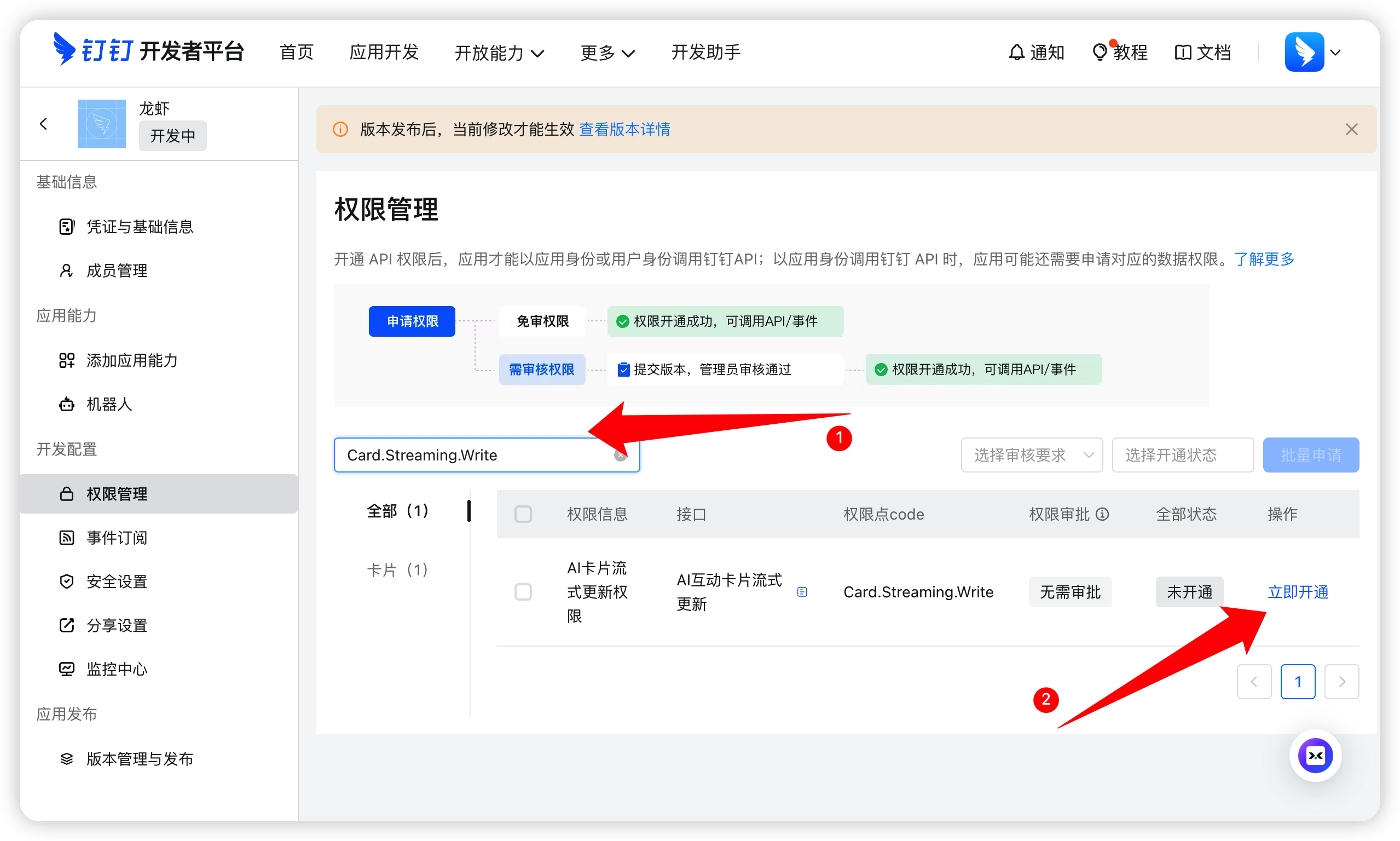
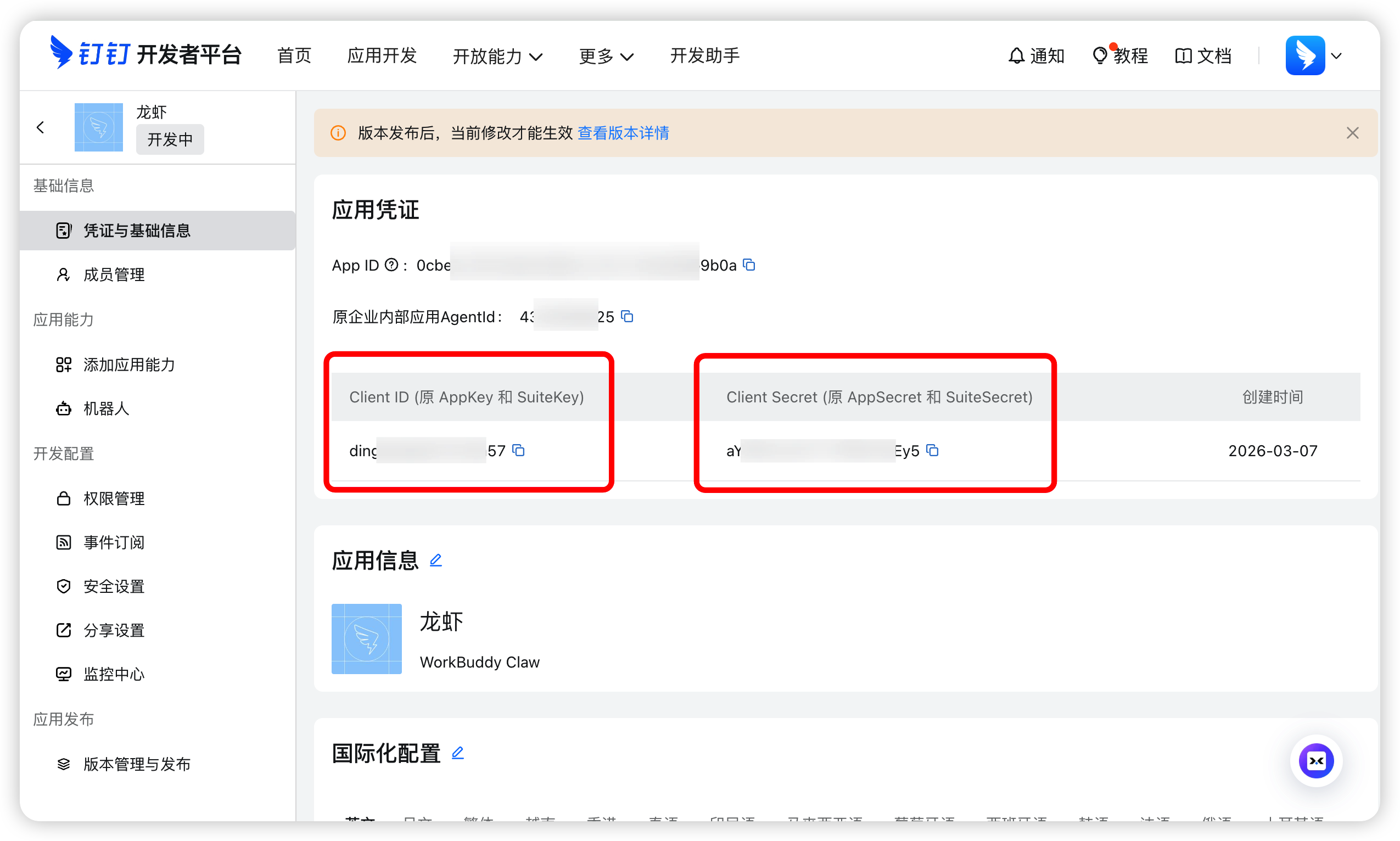
- Add bot capability to the app, fill in the bot name, description and avatar, then publish;
- Prefer to validate in a test org or test group first.
Source: WorkBuddy official guide.